Providing a Complete Suite of IT Solutions

Systems
Smart Evolv Kiosk
Kiosk is an add-on product to Smart Evolv Client and additional Web Services to iSmartMobileSvc server. Its primary functionality is Dialogflow.
Kiosk for MyEvolv includes:
- DialogFlow service to execute customer’s configured dialogs as workflows of MyEvolv forms conditional sequences;
- Multi-language support of all MyEvolv forms rendered by Kiosk;
- Self-Pay client service for Copay & deductibles (credit/debit cards, PayPal, checks, cash);
- Payment services for deductibles via credit/debit cards references on file after payments by an insurance plan.
It can run as add-on function for Smart Evolv Client (eNote) or can be deployed to run as dedicated Kiosk device (disabling all MS Windows functions/features except Kiosk and few optional apps).
In dedicated Kiosk device mode you can configure tablet to hide all Windows screens and functions and boot tablet to Kiosk screen.
In Kiosk mode Kiosk can run in client mode disabling all Smart Evolv Client functions for clients.
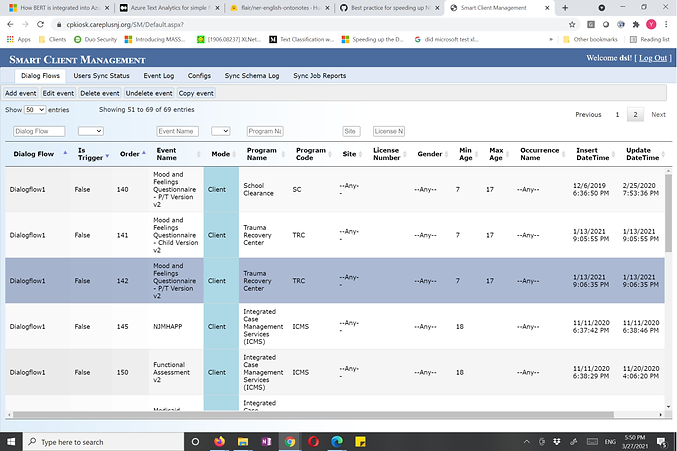
All Dialogflow rules can be configured by customers using Dialog Flow Manager Web application.
Dialogflows definitions are saved in Evolv_Reports database.
Kiosk can have many Dialogflows definitions.
Each Dialogflow is named sequence of conditional events/forms.
Each event is conditional and can include condition rules.
Each Dialogflow is started by a trigger.
Any event can be defined as a trigger. Any task check-in can be defined as a trigger.
Trigger definition includes event definition ID, an optional Program Info ID, an optional site providing service ID. Dialogflow manager selects them by name from DDL/combo-box.
Each trigger specifies Dialogflow name to start.
When any event is saved/e-signed/completed, then Kiosk functions check saved event ID, program, site to match triggers.
If match found then specified Dialogflow started and sequentially creates events in Smart Evolv Client without need for a user to create any event.
Each event in a Dialogflow sequence has condition filters which control the flow.
If a condition filter matches then the event in Dialogflow created.
If a condition filter does not match then the event in the Dialogflow skipped and next event tried.
Condition filters for Dialogflow events include:
a) Client min age and client max age
b) Client gender
c) Event occurrence for current client (an initial occurrence, follow-up or periodic followup)

Some fields in created events can be auto-populated by Dialogflow (e.g. Program, Site, Client).
Dialogflow manager can specify "mode" for a Dialogflow event execution: client mode or staff mode.
In client mode all staff functions are disabled and client cannot do anything but fill out a form and press [continue] until end of client mode in Dialogflow events sequence.
When client mode ends, then the Kiosk prompts the client to return the tablet to a staff and prompts staff to login to resume work.
It solves security issue when a client/foster parent / parent has to enter data or sign a form.
